New
Orchestrations — pipelines over the jobs you already have
Dependencies decide what runs after what. Orchestrations go further: a pipeline that makes decisions, loops over a list, waits for sign-off, retries what failed and hands values from one step to the next. They sit on top of regular scheduling, so your existing jobs, calendars and agents keep working exactly as before. Orchestration is built into IDRuns — the same console, server and agents, with no separate product, licence or install.
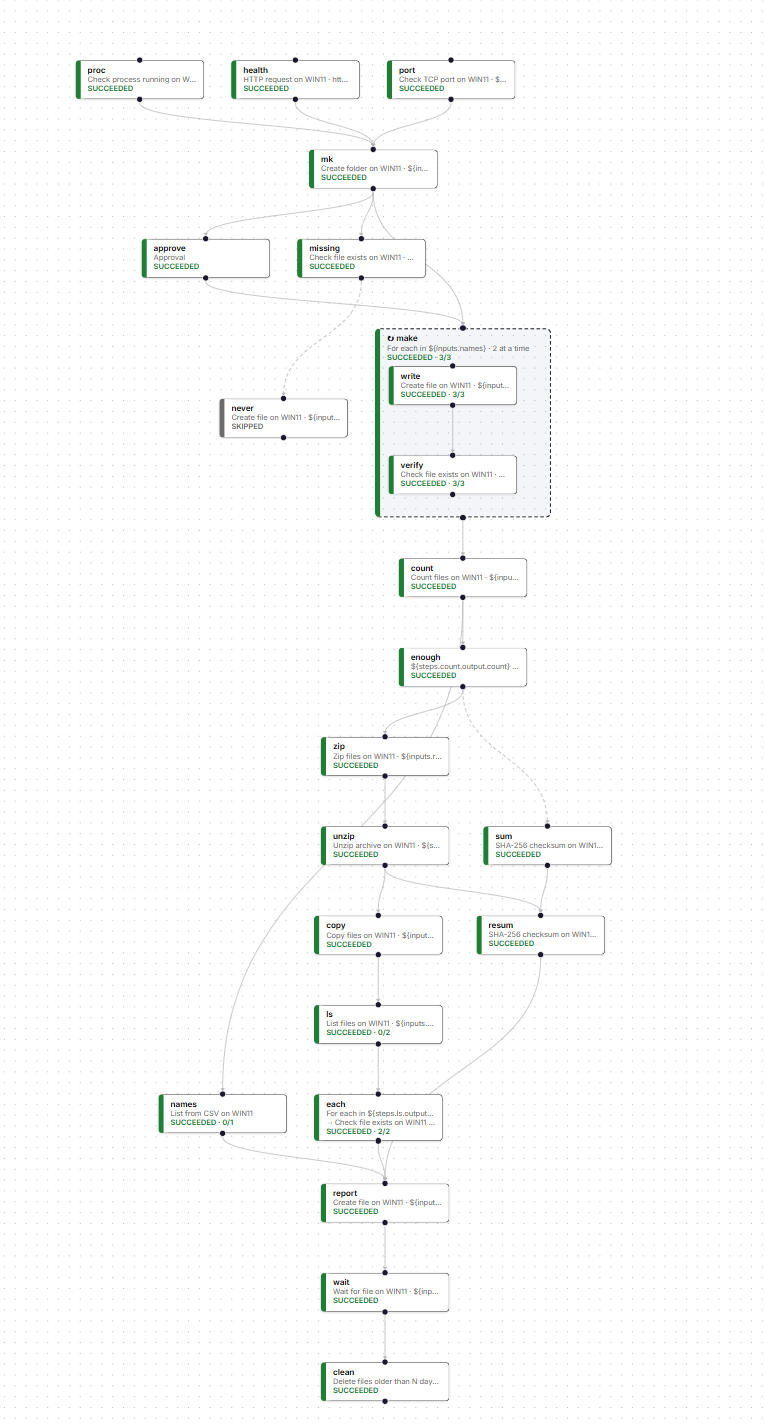
See the whole run at a glance
Every pipeline is a graph you can watch execute. Each step shows its status as it runs, and you can open any step to see its arguments and output.
- Parallel branches. Independent checks run side by side and join before the next step.
- Loops with progress. The for-each box runs its steps per item, a set number at a time, and shows how many have finished (3/3).
- Approvals in the flow. The run holds at the approval step until someone signs off.
- Conditional steps. Steps that don't meet their condition are skipped and clearly marked, shown here by the dashed branch.
- Data passed along. Later steps use values produced by earlier ones, such as counts, file lists and checksums.
What a pipeline is made of
- Jobs & job groups. Run any existing job or group as a step, with optional parameter, agent and runtime-user overrides.
- Inline scripts. cmd, PowerShell, Python, sh or bash run straight on an agent — no separate job definition needed.
- Built-in tools. Nearly 30 ready-made steps used like functions: copy, move, zip, mirror and clean up files, wait for a file, checksums, ping, port and HTTP checks, downloads, start, stop and restart services. Each works on Windows and Linux agents.
- Conditions & waits. Test an expression and let later steps run only when it holds; pause for a fixed time.
- Approvals. Hold the run until someone approves in the console — or by email, where each approver gets their own signed link.
- For-each loops. Run one step or a small chain of steps per item of a list, in parallel up to a limit you set. Lists can come from files in a folder, services, or JSON, CSV and XML data.
- Sub-orchestrations. Call another pipeline as a step and pass it inputs.
How it behaves
- Visual designer or YAML. Drag steps onto a graph, drop them into a loop box, lay it out left-to-right or top-to-bottom — or edit the same pipeline as YAML. Both produce one definition.
- Data between steps. Typed run parameters, and each step can publish outputs that later steps read in parameters, scripts and conditions.
- Retries & trigger rules. Retry a step with backoff, and choose when a step fires: all upstream succeeded, all finished, one succeeded, one failed or all failed.
- Failure handlers. Steps that run only when the pipeline fails — alert, clean up, roll back.
- Cron schedules. Run on demand or on a schedule, each with its own time zone.
- Immutable versions. Every save is a new version; a run always records the version it executed.
- Live runs. Orchestration Runs shows the graph as it executes, per-item loop status and each step's output, with approve, retry and cancel in place.
- Validated on save. Unknown jobs, agents, step references and dependency cycles are caught before a pipeline can run.
- Describe with AI (optional). Draft a pipeline from a plain-English description; every name it uses is checked against your real definitions.
name: customer-etl
inputs:
  region: {type: string, default: EU}
steps:
  - id: wait_for_drop
    type: tool
    tool: wait_for_file
    agent: etl-01
    args: {path: "/data/in/${inputs.region}-*.csv"}
  - id: extract
    type: job
    job_no: "101"
    needs: [wait_for_drop]
    params: "--region ${inputs.region}"
    retry: {max: 2, backoff_seconds: 60}
  - id: check
    type: condition
    needs: [extract]
    expr: "${steps.extract.output.rows} > 0"
  - id: signoff
    type: approval
    needs: [check]
    when: "${steps.check.result}"
    message: "Load ${inputs.region} into production?"
    approvers: ops@example.com
  - id: load
    type: job
    job_no: "102"
    needs: [signoff]
on_failure:
  - id: notify
    type: job
    job_no: "900"
Read it top to bottom
- Wait for the region's file to arrive and stop growing.
- Run the existing extract job, retrying twice a minute apart.
- Check that the extract produced rows.
- If it did, email ops for sign-off and hold.
- Once approved, run the load job.
- If anything fails, run the notify job.
Orchestrations are an Advanced Option, switched on in System Settings. In a high-availability deployment only the active server launches steps, and each step is launched at most once.